
Release Onboard Template Configuration to Employees
Release Employee profile for Onboard
Template Configuration to EmployeesProcessThe Release Onboard Employee Configuration to Employees is HR releases the employee profile so that the employee can enter their own personal, professional, and statutory details directly through the Self-Service portal.
The purpose of releasing the employee onboarding profile is to:
HR “Releases” the Employee Profile
- Employee Profile Release
is:needed because the systemHR allows employees to update their details through the employee’s self-service access. - This 'Release' process can perform through two different ways
-
- Release to Individual
EmployeeEmployee(Only for new Joinee) - Release to Group of Employees through
ConfigurationRelease to Employee tab.
- Release to Individual
-
- Release to Individual Employee
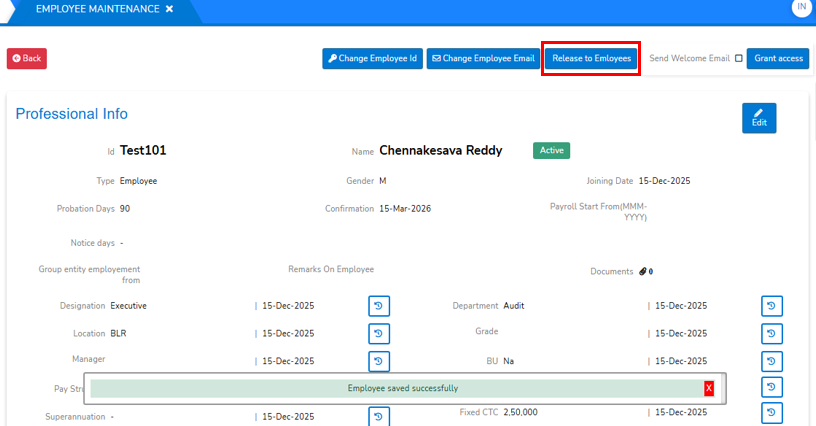
- After Employee basic creation, HR
giveswill get the option to grant access to Employeeand sendwith welcome mail at the same timeyouHR can release theconfigurationEmployeetoprofileEmployeefor On-board process as shown below.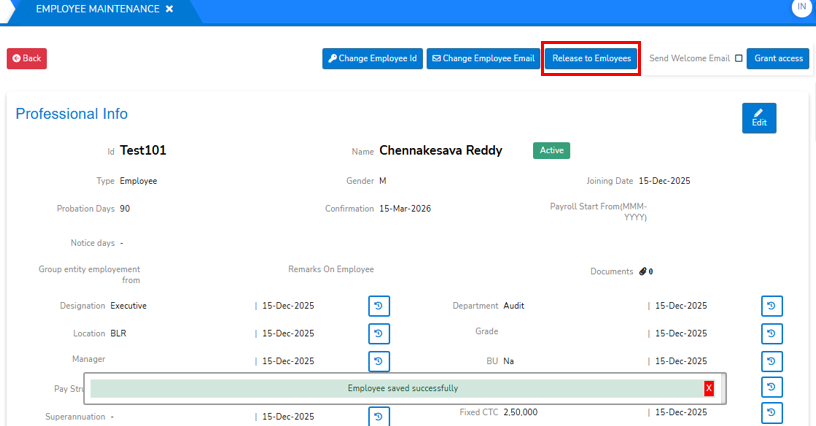
- After Employee basic creation, HR
- Release to Group of Employees through Configuration
- To Release the
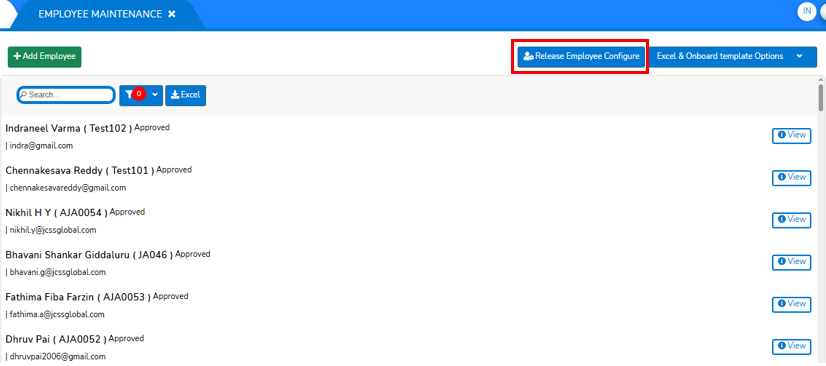
configurationbulktoofallEmployeesEmployees,profile for On-board process, Then Go To 'Employee Maintenance Screen' on top of that screen the button Release Employee Configure as shown below.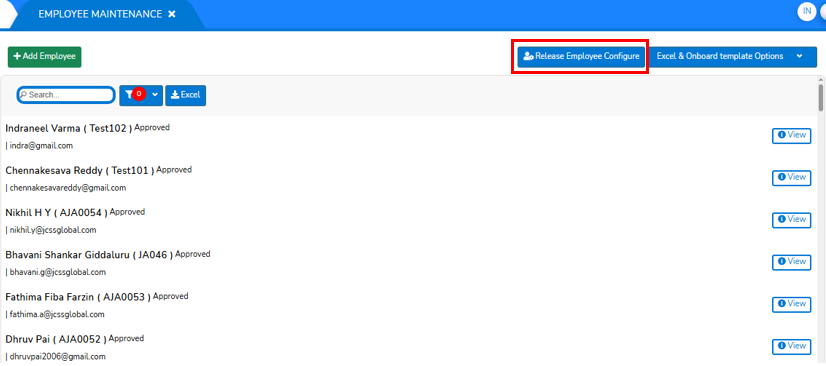
- click on "Release Employee Configure" will opens a screen displays all the
allemployees and the status of release configuration of Employees as shown in below screen.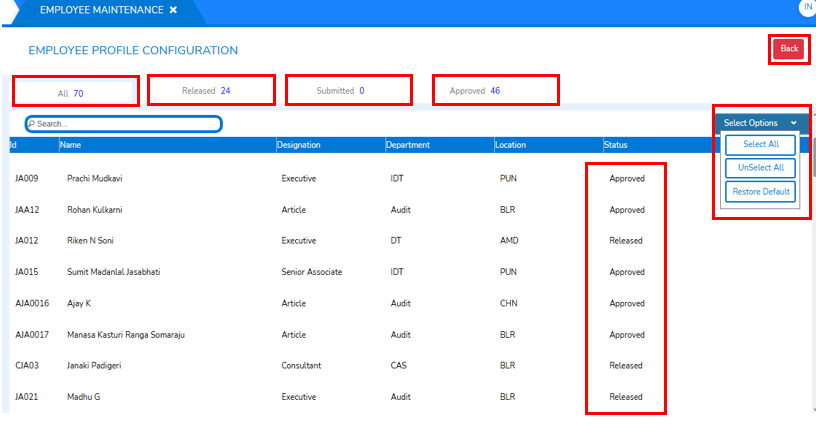
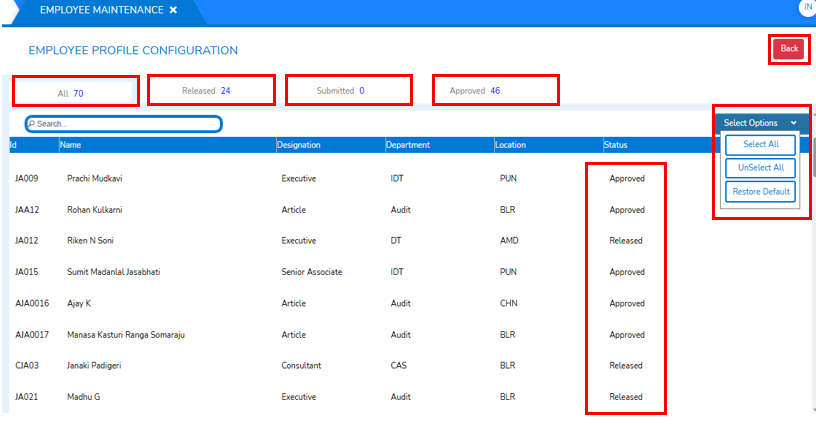
- During the Release process, you will be directed to the above screen, where all employees are displayed along with their onboarding status, such as “Approved” and “Released".
- The header section of this page shows status categories with corresponding count indicators. Each status is described below:
- Back: By clicking the “Back” button, you will return to the default Employee Maintenance screen.
- All: Shows the complete list of employees in the organization along with the total count.
- Released: Represents the number of employees whose onboarding profiles have been
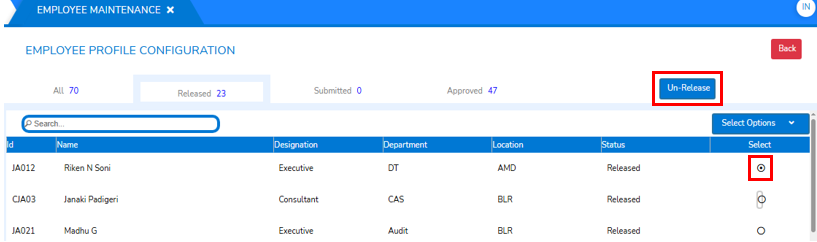
released.released to employee. HR canstoprevert the release action at any time, if required, by using the “Un-Release” option.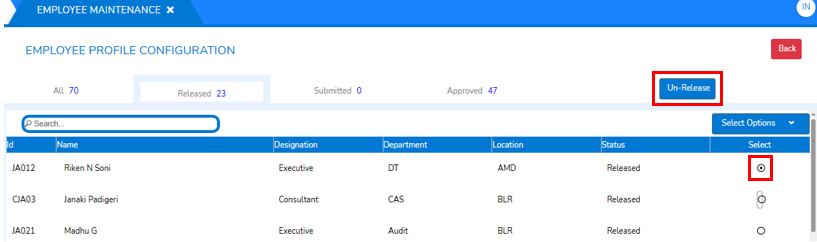
To do this, select the employee using the selection checkbox and click the “Un-Release” button. This action will lock the employee’s onboarding process, and the employee’s status will change back from “Released” to “Approved.”
Until HR releases the profile again, the employee will not be able to
updateupdate/changeoranycontinuedetailstheononboardingtheirprocess.profile. - Submitted: Represents the number of employees who have submitted their onboarding details for HR review after release. Once Employee have submitted their profile it will be locked for any modification.
- Approved: Indicates the number of employees whose onboarding profiles have been submitted and approved by HR.(It
Itindicated the Employee profile is Approved and locked for any modification. Further HR can come to this section and Re-Release the profile again). This list also includes new joinee employees whose profiles are yet to be release foronboarding, where applicable.onboarding. - Select Options: This dropdown allows you to select employees for bulk release actions. You can choose “Select All”, “Unselect All”, or “Restore to Default” from the list. Employees can also be selected individually, if required.
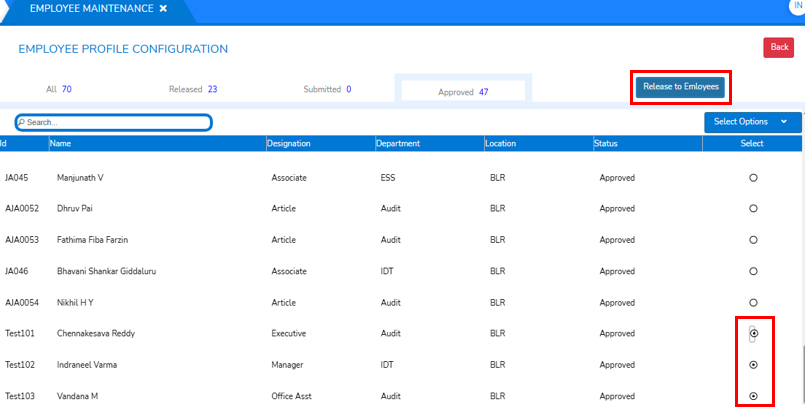
- To release employee configurations in bulk, click on Approved, select the required employees, and then click the Release to Employees button to configure onboarding sections.
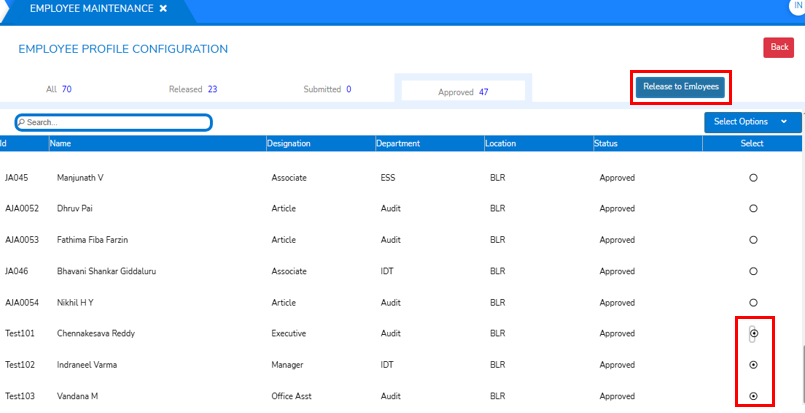
- Post click on the 'Release to Employees',
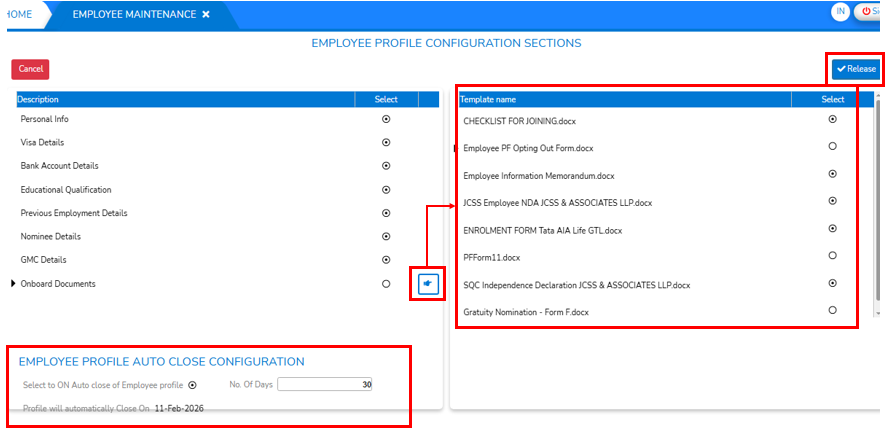
youHR will be directed to the screen where HRwillshouldConfigurechoosewhichthe data section to release to employeeprofilelikesectionsare enabled for employees as shown in below screen.().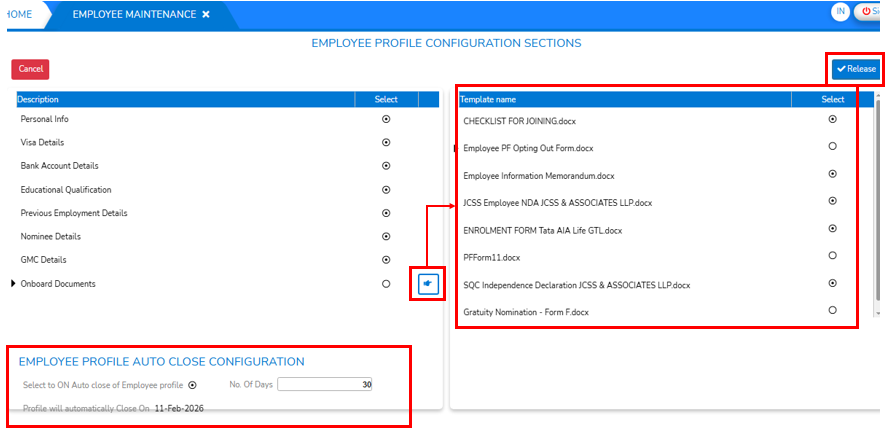
-
In the above screen, the left panel displays the fields that can be released in the Employee Maintenance screen. For example, if visa details are not required for an employee, this option can be deselected. As a result, the Visa Details section will not be visible to the employee in the Employee Maintenance screen.
-
Onboard Documents:
Onboard Documents are preconfigured templates that are readily available in the system. By clicking the expand (right arrow) icon, the list of templates required for the onboarding process is displayed. Select the templates that are applicable to the employee. -
Employee Profile Auto Close:
This section controls the automatic closure of employee onboarding profiles. When the Auto Close of Employee Profile option is enabled, the system automatically closes the employee profile after the number of days specified in the No. of Days field. Once the auto-close date is reached, employees will no longer be able to modify or submit their onboarding details.
- To Release the
-
-
Click Release to complete the final step of releasing the configuration to employees. After release, the configured employee profiles become available to employees in their self-service portal. Employees can log in to the system, complete all the enabled profile sections, and submit the details to HR for approval.
-
--- END ---