Creation of Employee Basic Profile
Employee Maintenance –
BasicNewEmployeeJoineeCreationOn-board ProcessThis screen is used by HR/Admin to create
annewemployee’semployee withBasicminimalrecorddetails in the systembeforeandonboardingthen release the employee profilesare releasedto the employee forself-serviceonboardingentry.process.Once the basic employee record is saved:
HRAfterconfiguresadding therequirednew Joinee HR will start the onboardingprofilesprocess.
HR will Release the profile with (Personal,Address,Bank,Bank,Educational Qualification, Previous employment, Nominee , GMC andotheronboard Documents,etc.)etc).HR
clicksReleaseNeeds tomakegivetheseuserprofiles availableAccess tothe employee.Employee.
TheNow the employee logs into the Self-Service Portal, and fills in the details, and submitsthemtheir full filled profile for HR approval.
To view the Add/ Create Employee Profile page, Login to SPARC > Menu > HR > Employee Maintenance > Add Employee.
1. HR Creates or Preloads the Basic Employee Record
- Login to SPARC as HR / Admin
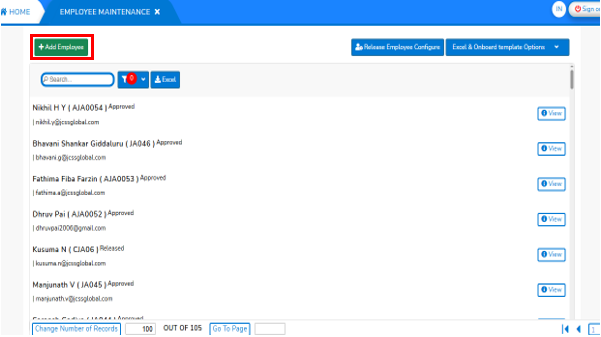
- Open the Employee Maintenance menu. Here you can see all the Employee details as shown in below screen.
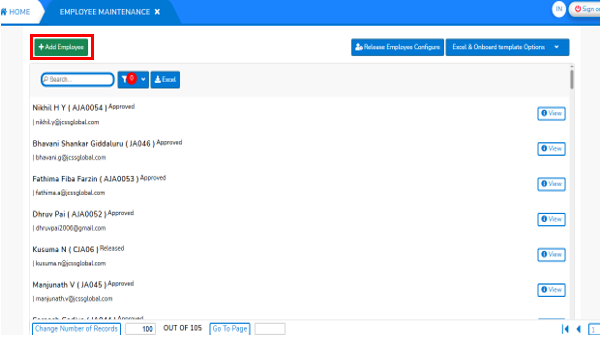
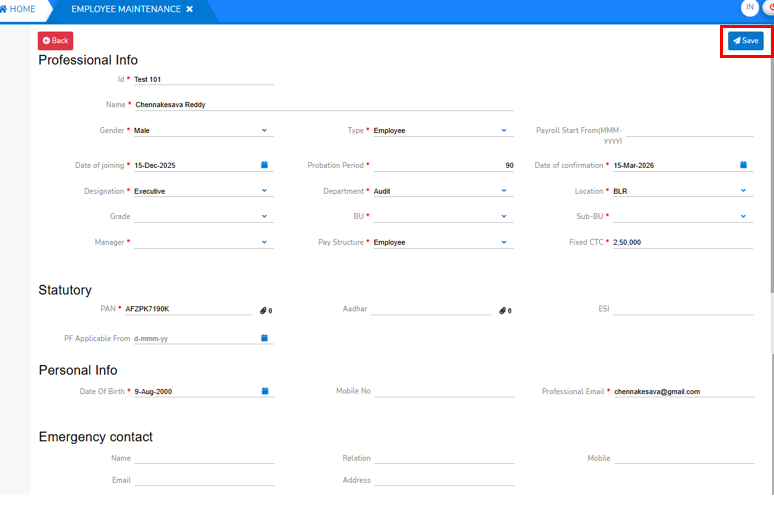
- Firstly, create the Employee profile with basic information by clicking on '+Add Employee'. A Screen will open with basic employee details are entered as shown below screen.
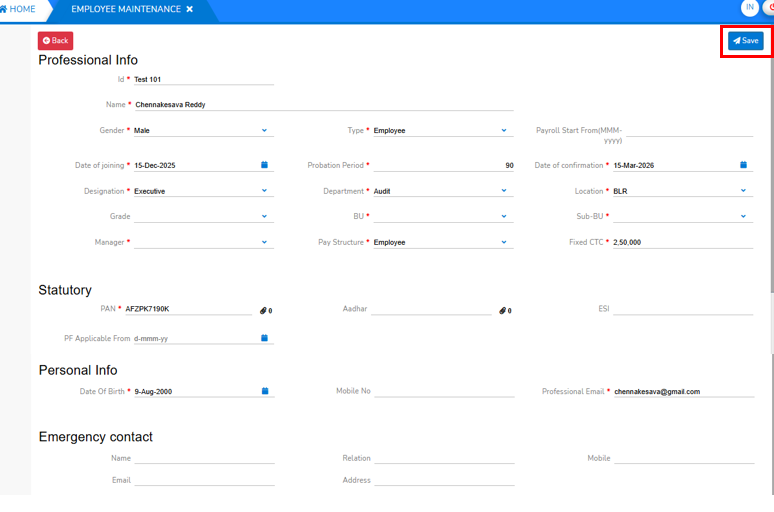
- Enter all fields marked with (*), as they are mandatory to create the employee’s basic profile in
SPARC.SPARC(Except PAN). Click the “Save” button to create the employee profile. Once saved, a success message will appear on the Employee Profile screen, as shown below.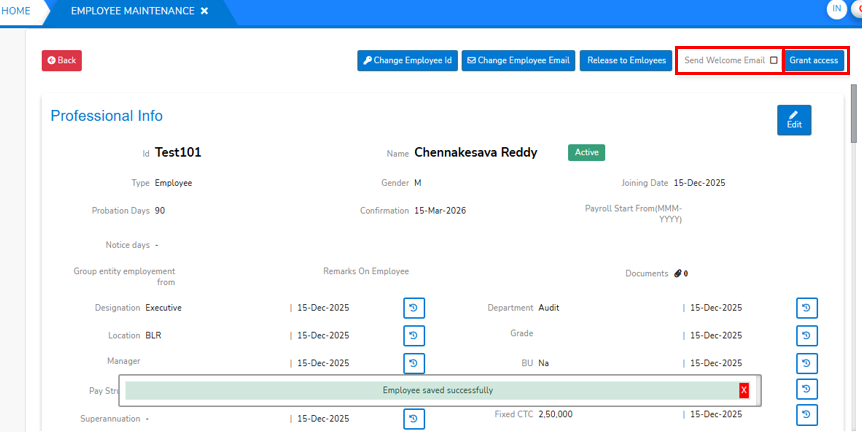
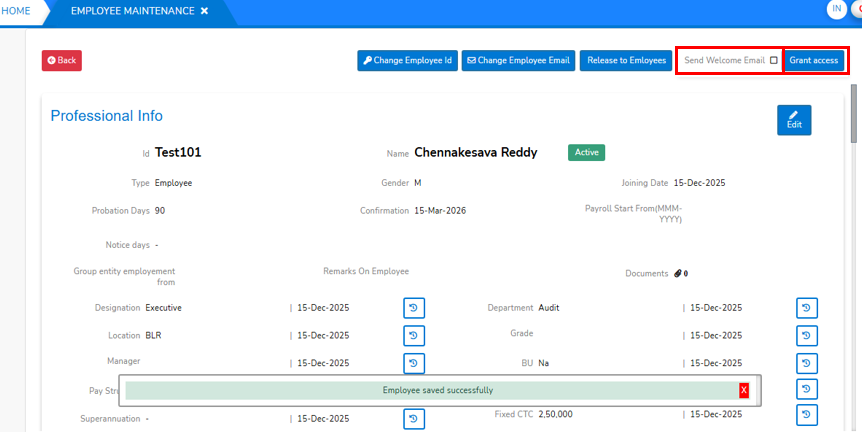
- After Employee creation, Please
givegrantgrantthe access to the Employeeandwhilethengranting you can choose send welcome mail also by clicking on the Send Welcome Email check boxprovided as shownin screen above. -
Note : Initially the Employee will
continuestart the EntireOnboaringOn-boarding process in the system with theperonalpersonal email id (If organization have not generated the Professionalemialemailid)id yet). - Later
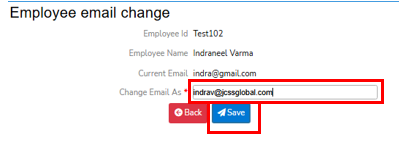
onon, theemployeeHR canchangeupdate the professional email id through the 'Change Employee Email' option as shown in the above screen. Then enter the Professional email id in the 'Change Email As' and then 'Save' to update the Emai id.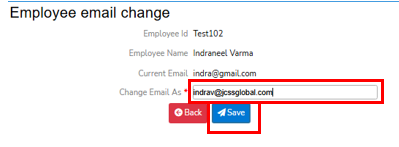
2. HR “Releases” the Employee Profile
- This is needed because the system allows employees to update their details through the employee’s self-service access.
- This 'Release' process can perform through two different ways
-
- Release to Individual Employee
- Release to Group of Employees through Configuration
-
- Release to Individual Employee
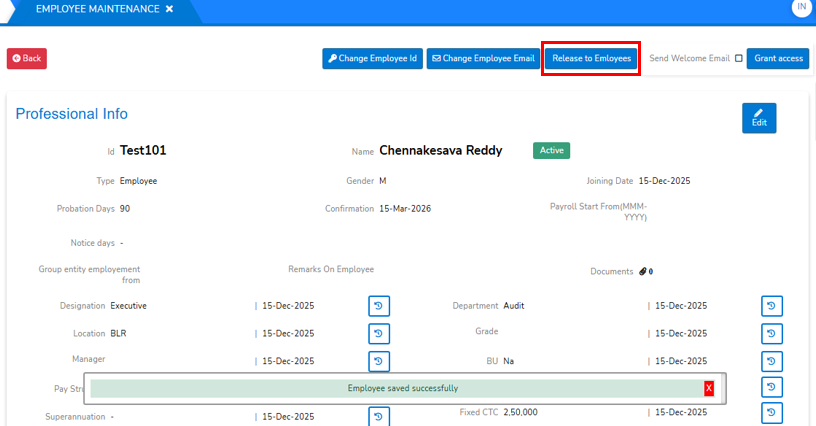
- After Employee basic creation, HR gives access to Employee and send welcome mail at the same time you can release the configuration to Employee as shown below.
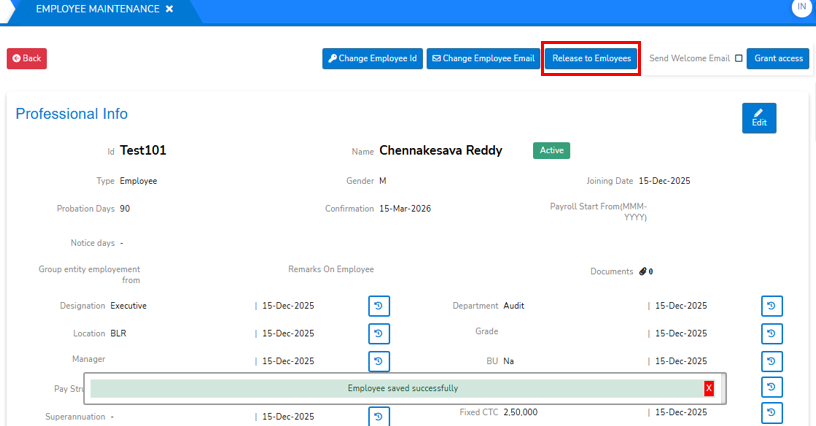
- After Employee basic creation, HR gives access to Employee and send welcome mail at the same time you can release the configuration to Employee as shown below.
- Release to Group of Employees through Configuration
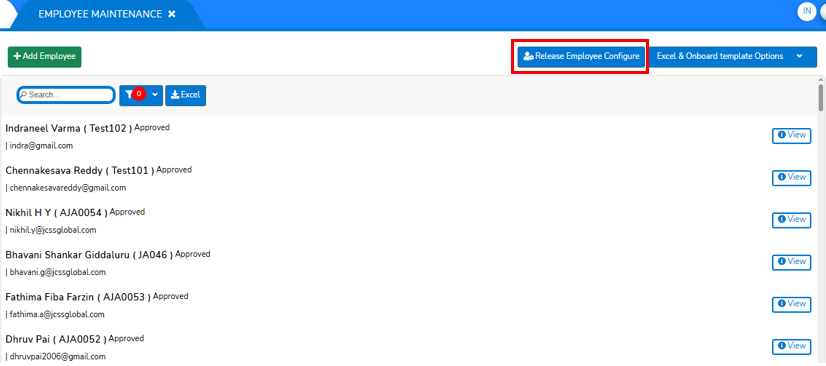
- To Release the configuration to all Employees, Then Go To 'Employee Maintenance Screen' on top of that screen as shown below.
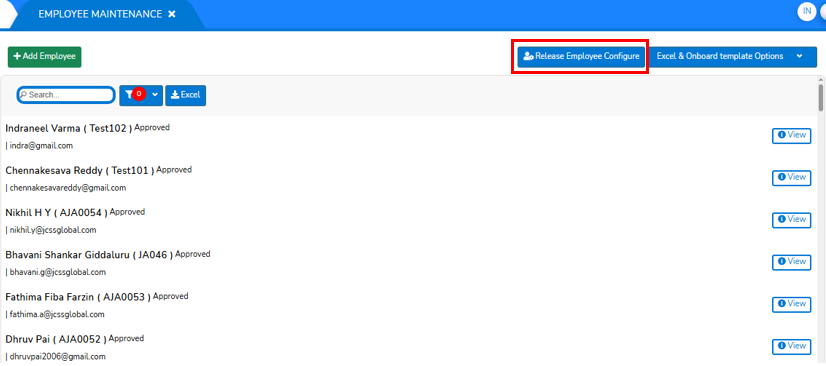
- click on "Release Employee Configure" will opens a screen displays the all employees and the status of release configuration of Employees as shown in below screen.
- [make it seperate Document and then provide link here]
- To Release the configuration to all Employees, Then Go To 'Employee Maintenance Screen' on top of that screen as shown below.