Creation of Employee Basic Profile
ReleaseEmployeeOnboardMaintenanceTemplate–ConfigurationBasic Employee CreationThis screen is used by HR/Admin to
Employeescreate
TheanReleaseemployee’sOnboardBasicEmployeerecordConfigurationin the system before onboarding profiles are released toEmployees is HR releasesthe employeeprofileforsoself-servicethatentry.Once the basic employee
canrecordenteristheir own personal, professional, and statutory detailsdirectly through the Self-Service portal.saved:
1. HR Creates or Preloads the Basic Employee Record
HR
addsconfiguresbasicthedatarequiredlikeonboardingEmployeeprofilesID,(Personal,Name,Address,Designation,Bank,Department,PreviousLocation,employment, Nominee and other Documents, etc.).
ThisHRisclicks Release to make these profiles available to theminimum information required to initiate the profile.
2. HR “Releases” the Employee Profile
When HR releases the profile, it means the system unlocks the employee’s self-service access.employee.
AfterTherelease,employee logs into theemployeeSelf-ServicecanPortal,start fillingfills intheirtheremainingdetails,details.and submits them for HR approval.
This is needed because the system only allows employees to update their detailsafter HR confirms the basic setup.
To view the ReleaseAdd/ Create Employee Profile Configuration page, Login to SPARC > Menu > HR > Employee Maintenance > CreateAdd Employee Basic Profile > Then click on Release Employee Configure..
1. HR Creates or Preloads the Basic Employee Record
- Login to SPARC as HR / Admin
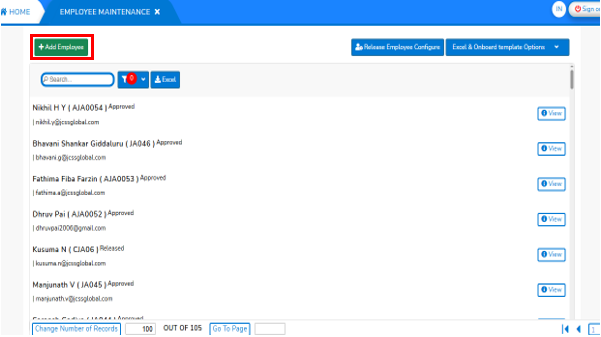
- Open the Employee Maintenance menu. Here you can see all the Employee details as shown in below screen.
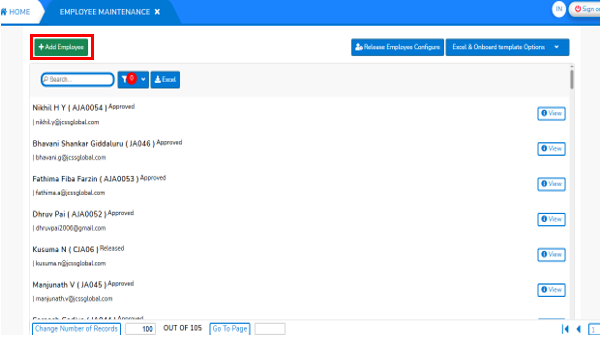
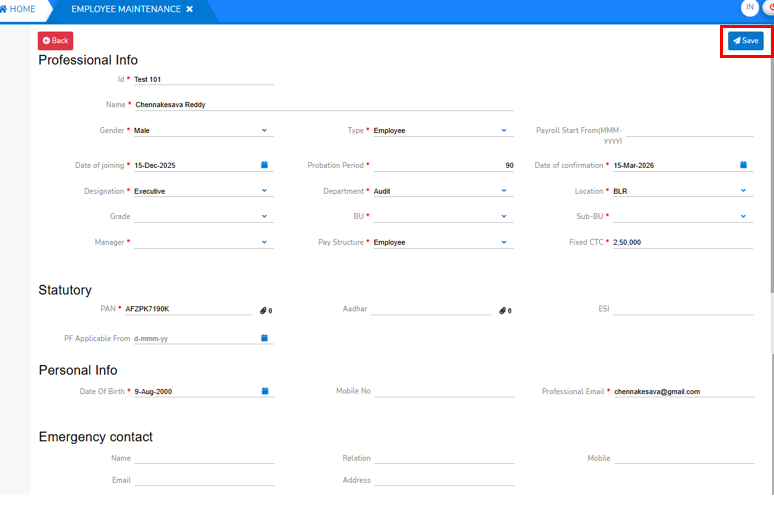
- Firstly, create the Employee profile with basic information by clicking on '+Add Employee'. A Screen will open with basic employee details are entered as shown below screen.
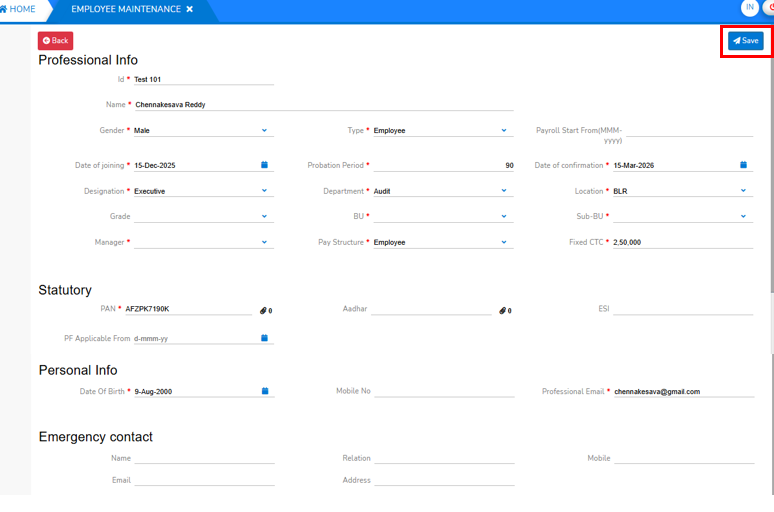
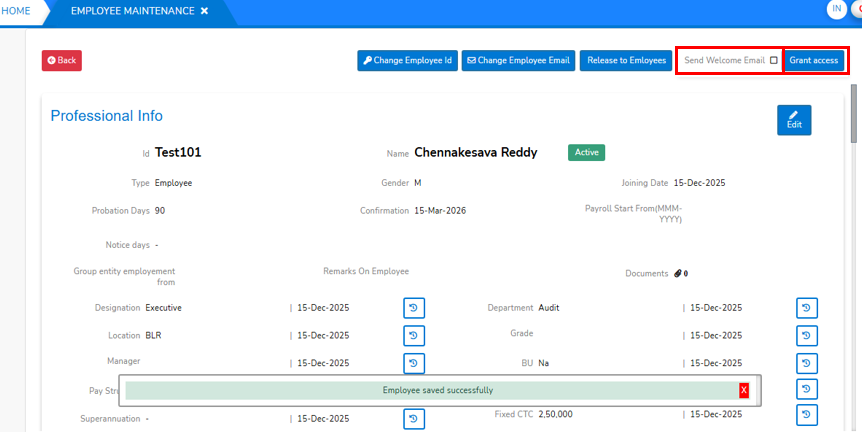
- Enter all fields marked with (*), as they are mandatory to create the employee’s basic profile in SPARC. Click the “Save” button to create the employee profile. Once saved, a success message will appear on the Employee Profile screen, as shown below.
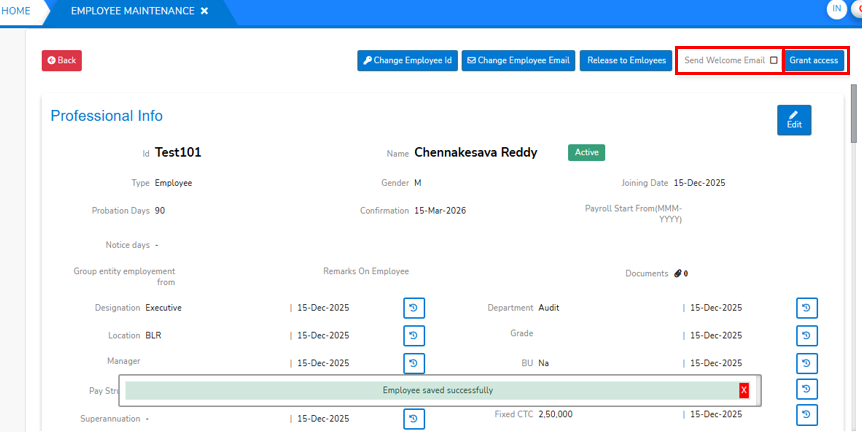
- After Employee creation, Please give grant access to the Employee and then send welcome mail by clicking on the check box provided as shown in screen above.
-
Note : Initially the Employee will continue the Entire Onboaring process in the system with the peronal email id (If not generated Professional emial id).
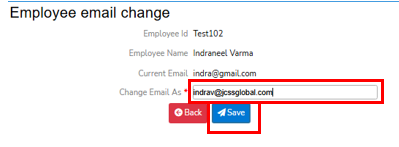
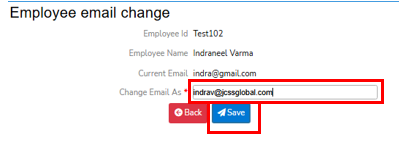
- Later on the employee can change the professional email id through the 'Change Employee Email' option as shown in the above screen. Then enter the Professional email id in the 'Change Email As' and then 'Save' to update the Emai id.
2. HR “Releases” the Employee Profile
- This is needed because the system allows employees to update their details through the employee’s self-service access.
- This 'Release' process can perform through two different ways
-
- Release to Individual Employee
- Release to Group of Employees through Configuration
-
- Release to Individual Employee
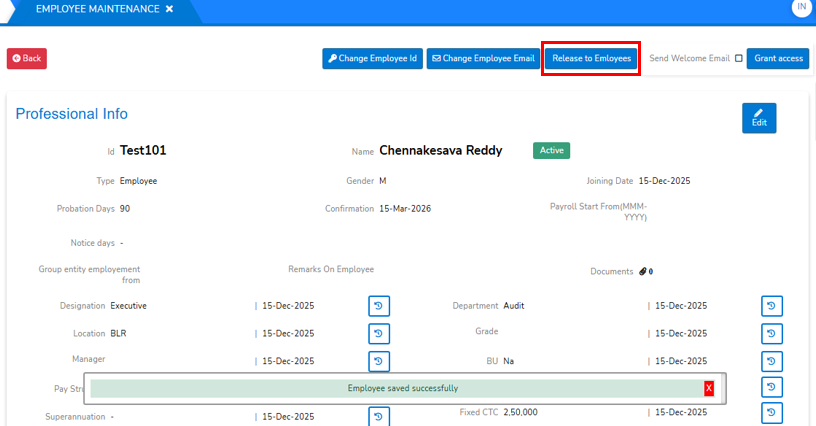
- After Employee basic creation, HR gives access to Employee and send welcome mail at the same time you can release the configuration to Employee as shown below.
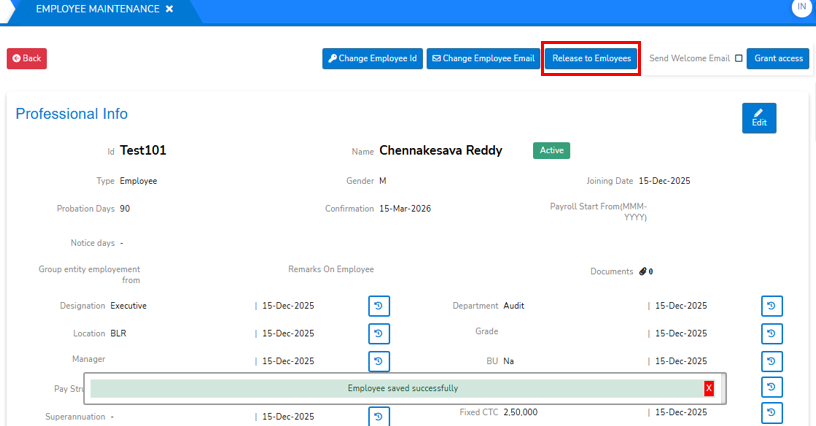
- After Employee basic creation, HR gives access to Employee and send welcome mail at the same time you can release the configuration to Employee as shown below.
- Release to Group of Employees through Configuration
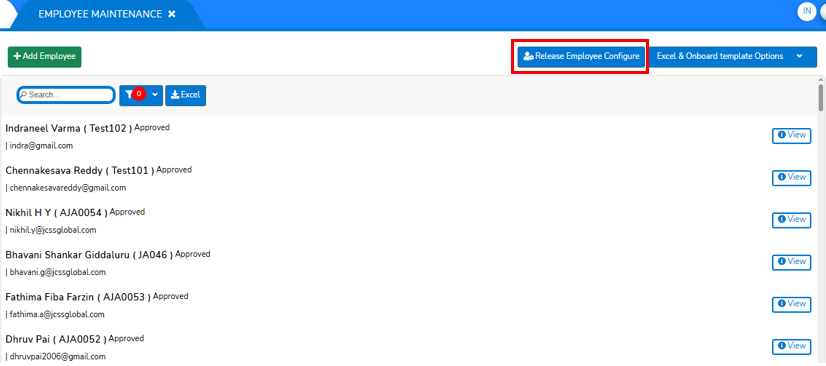
- To Release the configuration to all Employees, Then Go To 'Employee Maintenance Screen' on top of that screen as shown below.
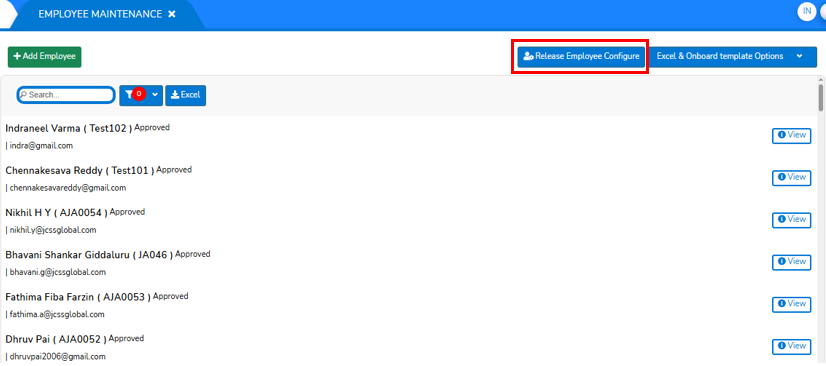
- click on "Release Employee Configure" will opens a screen displays the all employees and the status of release configuration of Employees as shown in below screen.
- [make it seperate Document and then provide link here]
- To Release the configuration to all Employees, Then Go To 'Employee Maintenance Screen' on top of that screen as shown below.