
Employee Profile Configuration
Employee Profile configuration
The Employee On-Board Profile Configuration section is used to manage all the documents and templates required during the employee onboarding process. This feature allows HR/Admin users to upload templates, verify them, and ensure that the system correctly recognizes the variables used within those documents.
It enables HR/Administrators to upload various onboarding document templates (such as offer letters, joining checklists, NDAs, appointment letters, Form-1 Declarations, Gratuity Nomination, etc.) which the system will automatically populate with employee data. This eliminates manual editing, ensures consistency, and speeds up the onboarding process.
To view the Employee Profile Configuration page, Login to SPARC > Menu > HR > Employee Maintenance > select 'Onboard Templates' in 'Excel & Onboard template options' dropdown > Employee Profile Configuration.
- Login to SPARC as HR / Admin
- Open the Employee Maintenance menu. Here you can see all the Employee details.
- To Configure the employee profile,
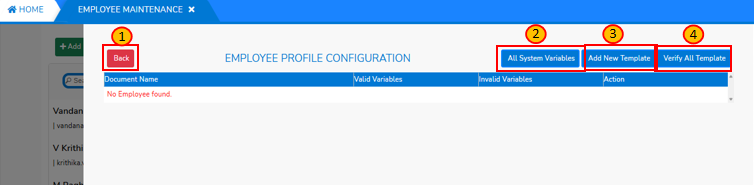
Thereclickis a dropdownthe "Excel & Onboarding templateoptions"options"click on that it opensdropdown andthen click onselect 'OnboardTemplates'Templates'. Then you will reach toemployeeEmployee profile configuration screen as shown below: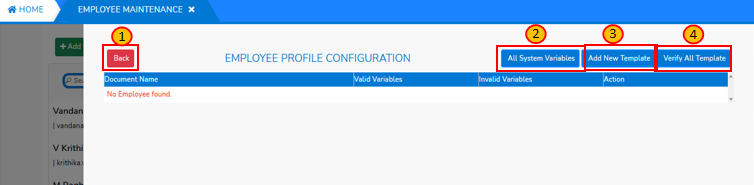
- Back: By clicking on the ‘Back’ button, you will be returned to the Employee Maintenance screen.
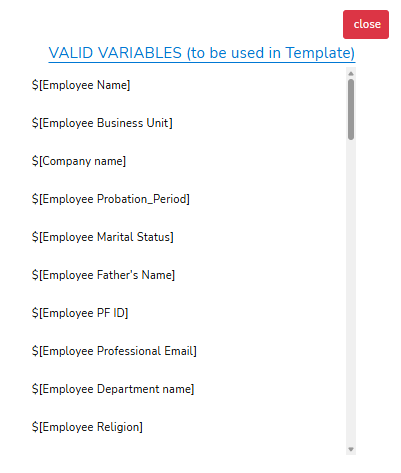
- All System Variables: By clicking on the 'All System Variables' opens a window with the list of valid variables (to be used in template) as shown below. When generating files (offer letter, joining checklist, etc.), the system replaces these variables with actual employee data.
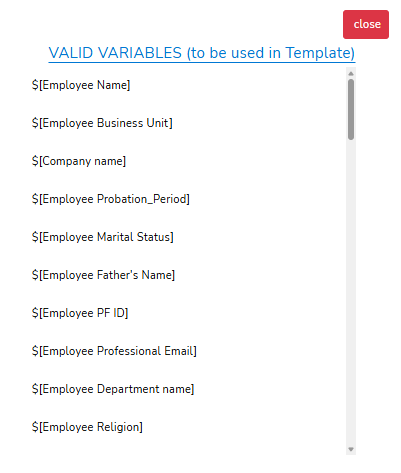
-
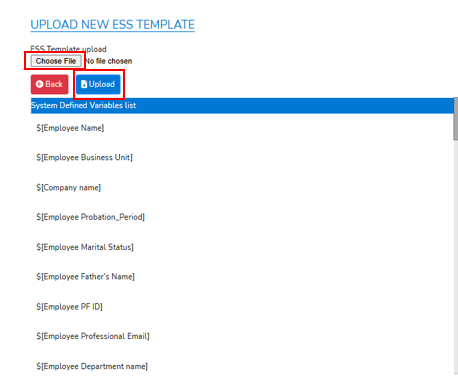
Add New Template:
This allows you to upload a new onboarding document in the .docx format only (for example: Joining Checklist.docx, Employee Information Memorandum.docx, NDA.docx, PF Form.docx, etc.).
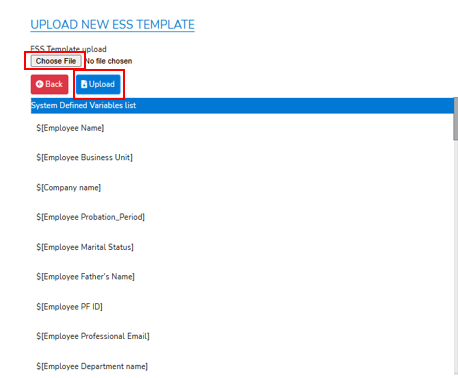
When you upload a document:
-
The system reads the file.
-
It extracts the variables contained inside the document.
-
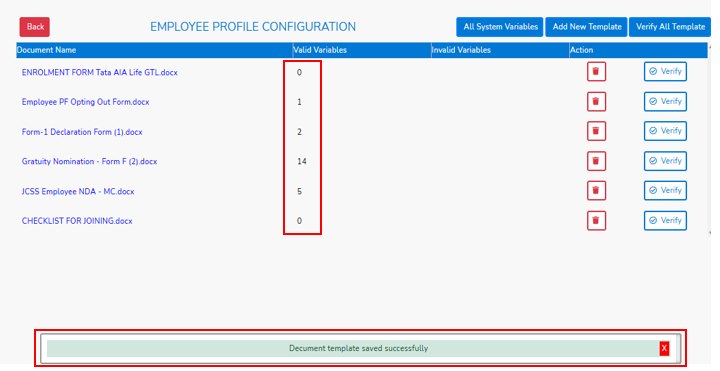
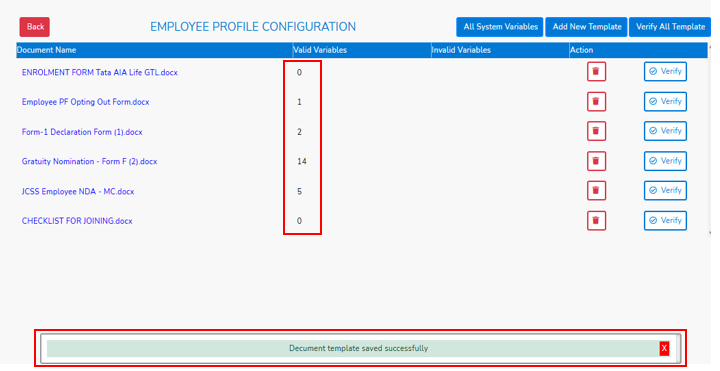
It saves the document in the configuration screen and displays a confirmation message as shown below.
-
The list of uploaded documents will be visible. Initially, the number of variables detected in the document will appear in the Valid Variables column.
There are two action buttons available:
Delete – to remove the document
Verify – to validate the variables present in the document
-
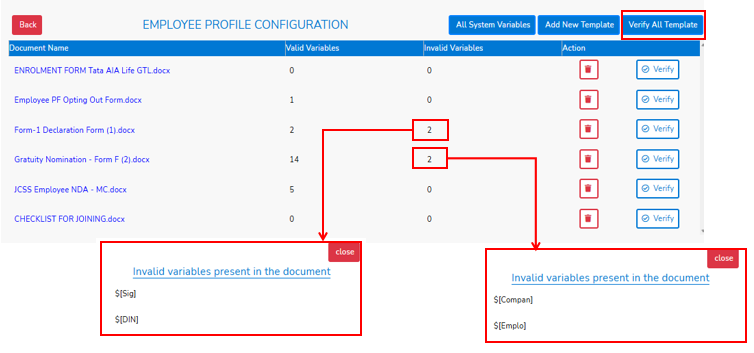
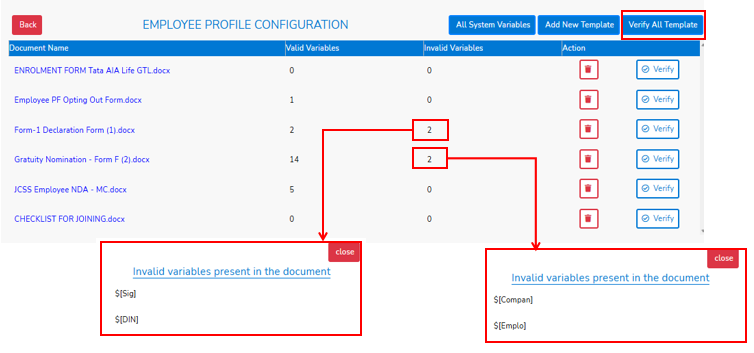
- Verify All Templates:
Runs validation on every uploaded template.
-
Check if variables inside documents are valid system variables
-
Detect typing errors in variable names
-
Identify unsupported variables in Invalid variables column as shown in below screen.
-
--- END ---